










How to Install Appwrite with Docker on Ubuntu 22.04
Appwrite is a free and open-source back-end server that offers core APIs required to build any application packaged together as a set of easy-to-use Docker containers. It helps mobile developers to build advanced apps much faster. Appwrite saves you 70% of the time and costs required for building a modern application. It offers a simple and user-friendly web interface that helps you to track your backend API usage and manage your project resources from a web browser.
In this post, we will show you how to install Appwrite server with Docker on Ubuntu 22.04.
Prerequisites
- A server running Ubuntu 22.04.
- A root password is configured on the server.
Add Docker Repository
By default, the latest version of Docker is not available in the Ubuntu default repository. So you will need to install it from Docker’s official repository:
First, install all the required dependencies with the following command:
apt install apt-transport-https ca-certificates curl software-properties-common -y
Once all the packages are installed, download and add the Docker GPG key using the following command:
curl -fsSL https://download.docker.com/linux/ubuntu/gpg | apt-key add -
Next, add the Docker official repository with the following command:
add-apt-repository "deb [arch=amd64] https://download.docker.com/linux/ubuntu jammy stable"
Once the Docker repository is added, you can verify the added repository using the following command:
apt-cache policy docker-ce
You will get the following output:
docker-ce:

  Installed: (none)

  Candidate: 5:20.10.17~3-0~ubuntu-jammy

  Version table:

     5:20.10.17~3-0~ubuntu-jammy 500

        500 https://download.docker.com/linux/ubuntu jammy/stable amd64 Packages

     5:20.10.16~3-0~ubuntu-jammy 500

        500 https://download.docker.com/linux/ubuntu jammy/stable amd64 Packages

     5:20.10.15~3-0~ubuntu-jammy 500

        500 https://download.docker.com/linux/ubuntu jammy/stable amd64 Packages

     5:20.10.14~3-0~ubuntu-jammy 500

        500 https://download.docker.com/linux/ubuntu jammy/stable amd64 Packages

     5:20.10.13~3-0~ubuntu-jammy 500

        500 https://download.docker.com/linux/ubuntu jammy/stable amd64 Packages
Install Docker CE
Now, install the Docker CE package by running the following command:
apt install docker-ce -y
Once the Docker CE is installed, you can verify the Docker CE version with the following command:
docker --version
You should see the following output:
Docker version 20.10.17, build 100c701
You can also verify the status of the Docker with the following command:
systemctl status docker
You should see the following output:
? docker.service - Docker Application Container Engine

     Loaded: loaded (/lib/systemd/system/docker.service; enabled; vendor preset: enabled)

     Active: active (running) since Sun 2022-08-28 05:52:18 UTC; 47s ago

TriggeredBy: ? docker.socket

       Docs: https://docs.docker.com

   Main PID: 2719 (dockerd)

      Tasks: 7

     Memory: 30.3M

        CPU: 312ms

     CGroup: /system.slice/docker.service

             ??2719 /usr/bin/dockerd -H fd:// --containerd=/run/containerd/containerd.sock
Aug 28 05:52:18 ubuntu2204 dockerd[2719]: time="2022-08-28T05:52:18.379341986Z" level=info msg="scheme "unix" not registered, fallback to d>
Aug 28 05:52:18 ubuntu2204 dockerd[2719]: time="2022-08-28T05:52:18.379467088Z" level=info msg="ccResolverWrapper: sending update to cc: {[{u>
Aug 28 05:52:18 ubuntu2204 dockerd[2719]: time="2022-08-28T05:52:18.379593467Z" level=info msg="ClientConn switching balancer to "pick_first>
Aug 28 05:52:18 ubuntu2204 dockerd[2719]: time="2022-08-28T05:52:18.427861369Z" level=info msg="Loading containers: start."
Aug 28 05:52:18 ubuntu2204 dockerd[2719]: time="2022-08-28T05:52:18.620267088Z" level=info msg="Default bridge (docker0) is assigned with an >
Aug 28 05:52:18 ubuntu2204 dockerd[2719]: time="2022-08-28T05:52:18.713742709Z" level=info msg="Loading containers: done."
Aug 28 05:52:18 ubuntu2204 dockerd[2719]: time="2022-08-28T05:52:18.744925054Z" level=info msg="Docker daemon" commit=a89b842 graphdriver(s)=>
Aug 28 05:52:18 ubuntu2204 dockerd[2719]: time="2022-08-28T05:52:18.745338168Z" level=info msg="Daemon has completed initialization"
Aug 28 05:52:18 ubuntu2204 systemd[1]: Started Docker Application Container Engine.
Aug 28 05:52:18 ubuntu2204 dockerd[2719]: time="2022-08-28T05:52:18.805663866Z" level=info msg="API listen on /run/docker.sock"
Install Appwrite on Ubuntu 22.04
You can now install the Appwrite by running the following command:
docker run -it --rm --volume /var/run/docker.sock:/var/run/docker.sock --volume "$(pwd)"/appwrite:/usr/src/code/appwrite:rw --entrypoint="install" appwrite/appwrite:0.12.1
This command will download all required images for Appwrite and create a container. During the process, you will be asked to choose your HTTP and HTTPS server port:
83577bffd893: Pull complete

9722b4cda70e: Pull complete

bede3c89f2f3: Pull complete

0bb0dd9a25cc: Pull complete

d431a0cda7a4: Pull complete

bd9edd8b939c: Pull complete

24ccf9e70cfd: Pull complete

bc8aa3e29770: Pull complete

4ee3909c4974: Pull complete

359c5d4ab0a2: Pull complete

97ffe4879aea: Pull complete

42e96d223d26: Pull complete

c12fc543b73f: Pull complete

e25a36152792: Pull complete

e672f91535ad: Pull complete

f4a1c11b6f1d: Pull complete

9df8264116e7: Pull complete

f3c7599812dd: Pull complete

cf51f2dd9e94: Pull complete

Digest: sha256:ddc9e53482252df4eb2e0ff90a7efff6cec5346b34240f664ac24e582dc65071

Status: Downloaded newer image for appwrite/appwrite:0.12.1

Starting Appwrite installation...

Choose your server HTTP port: (default: 80)
Choose your server HTTPS port: (default: 443)
Choose a secret API key, make sure to make a backup of your key in a secure location (default: 'your-secret-key')
Provide your preferred ports and press the Enter key. You will be asked to provide your Appwrite hostname:
Enter your Appwrite hostname (default: 'localhost')

appwrite.example.com
Provide your hostname and press the Enter key. Once the Appwrite has been installed, you will get the following output:
Enter a DNS A record hostname to serve as a CNAME for your custom domains.
You can use the same value as used for the Appwrite hostname. (default: 'localhost')
appwrite.example.com
Running "docker-compose -f /usr/src/code/appwrite/docker-compose.yml up -d --remove-orphans --renew-anon-volumes"
Appwrite installed successfully
You can now verify all downloaded Docker images with the following command:
docker images
You will get the following output:
REPOSITORY                    TAG              IMAGE ID       CREATED         SIZE

mariadb                       10.7             b0408ef424b9   4 days ago      415MB

traefik                       2.5              865923368a9f   7 months ago    101MB

appwrite/appwrite             0.12.1           5dd87572d61b   7 months ago    492MB

appwrite/runtime-for-java     16.0             80cb53a883d9   14 months ago   327MB

appwrite/runtime-for-node     16.0             dd69334e816d   14 months ago   116MB

appwrite/runtime-for-ruby     3.0              553408e76d3d   14 months ago   62.6MB

appwrite/runtime-for-python   3.9              98f1967126b5   14 months ago   47.6MB

appwrite/runtime-for-php      8.0              e6c8c40bd069   14 months ago   86.3MB

appwrite/telegraf             1.2.0            b524e292d428   15 months ago   127MB

redis                         6.0-alpine3.12   933c79ea2511   19 months ago   31.6MB

appwrite/influxdb             1.0.0            8c1dd387596e   22 months ago   248MB
You can see all the running containers using the following command:
docker ps
You will get a list of all running containers in the following output:
                                 NAMES

a496ce91c5ed   traefik:2.5                "/entrypoint.sh --pr…"   33 seconds ago   Up 30 seconds   0.0.0.0:80->80/tcp, :::80->80/tcp, 0.0.0.0:443->443/tcp, :::443->443/tcp   appwrite-traefik

36c7df33b630   appwrite/appwrite:0.12.1   "worker-database"        44 seconds ago   Up 33 seconds   80/tcp                                                                     appwrite-worker-database

66e36ce68586   appwrite/appwrite:0.12.1   "worker-functions"       45 seconds ago   Up 33 seconds   80/tcp                                                                     appwrite-worker-functions

5011d448b1ed   appwrite/appwrite:0.12.1   "realtime"               45 seconds ago   Up 33 seconds   80/tcp                                                                     appwrite-realtime

84e117d48e23   appwrite/appwrite:0.12.1   "docker-php-entrypoi…"   45 seconds ago   Up 33 seconds   80/tcp                                                                     appwrite

95465c386e19   appwrite/appwrite:0.12.1   "worker-audits"          45 seconds ago   Up 34 seconds   80/tcp                                                                     appwrite-worker-audits

c0ddb48e3d0c   appwrite/appwrite:0.12.1   "worker-certificates"    45 seconds ago   Up 33 seconds   80/tcp                                                                     appwrite-worker-certificates

0cc2c6f401d8   appwrite/appwrite:0.12.1   "worker-webhooks"        45 seconds ago   Up 33 seconds   80/tcp                                                                     appwrite-worker-webhooks

47a519fa6e6d   appwrite/appwrite:0.12.1   "worker-deletes"         45 seconds ago   Up 37 seconds   80/tcp                                                                     appwrite-worker-deletes

af354030c8f7   appwrite/appwrite:0.12.1   "usage"                  45 seconds ago   Up 37 seconds   80/tcp                                                                     appwrite-usage

f25b1832b3bc   appwrite/appwrite:0.12.1   "schedule"               46 seconds ago   Up 40 seconds   80/tcp                                                                     appwrite-schedule

f5c7c025ecb3   appwrite/appwrite:0.12.1   "maintenance"            46 seconds ago   Up 41 seconds   80/tcp                                                                     appwrite-maintenance

e25d6b28b033   appwrite/appwrite:0.12.1   "worker-mails"           46 seconds ago   Up 38 seconds   80/tcp                                                                     appwrite-worker-mails

1c927b29732f   appwrite/telegraf:1.2.0    "/entrypoint.sh tele…"   48 seconds ago   Up 45 seconds   8092/udp, 8125/udp, 8094/tcp                                               appwrite-telegraf

7d8e644afba3   mariadb:10.7               "docker-entrypoint.s…"   48 seconds ago   Up 45 seconds   3306/tcp                                                                   appwrite-mariadb

21e8c76c53a0   appwrite/influxdb:1.0.0    "/entrypoint.sh infl…"   48 seconds ago   Up 46 seconds   8086/tcp                                                                   appwrite-influxdb

5b136250c71f   redis:6.0-alpine3.12       "docker-entrypoint.s…"   48 seconds ago   Up 46 seconds   6379/tcp                                                                   appwrite-redis
Access Appwrite Web Interface
Now, open your web browser and access the Appwrite web interface using the URL https://appwrite.example.com. You will be redirected to the Appwrite Sign Up page:

Provide your name, email address, password and click on the Sign Up button. You should see the Appwrite dashboard on the following page:
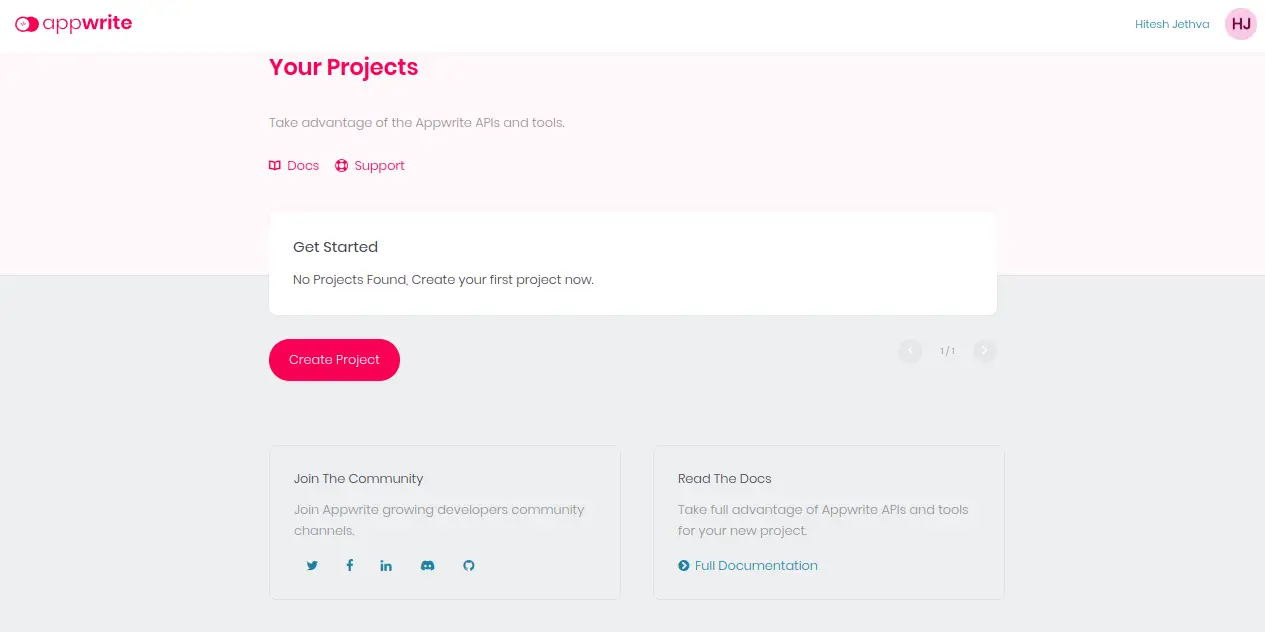
Click on the Create Project button to create your first project. You should see the following page:
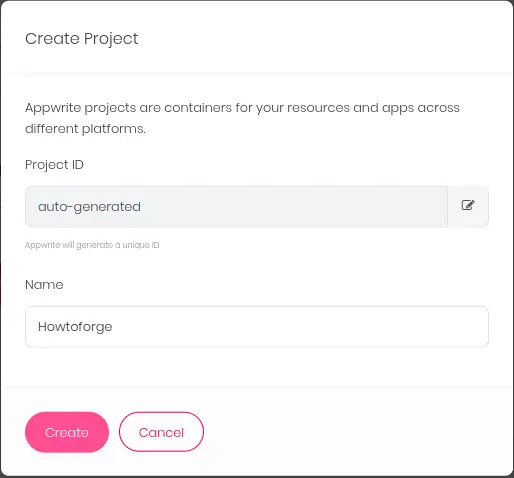
Provide your Project ID, Project name and click on the Create button. You will get into your project page:
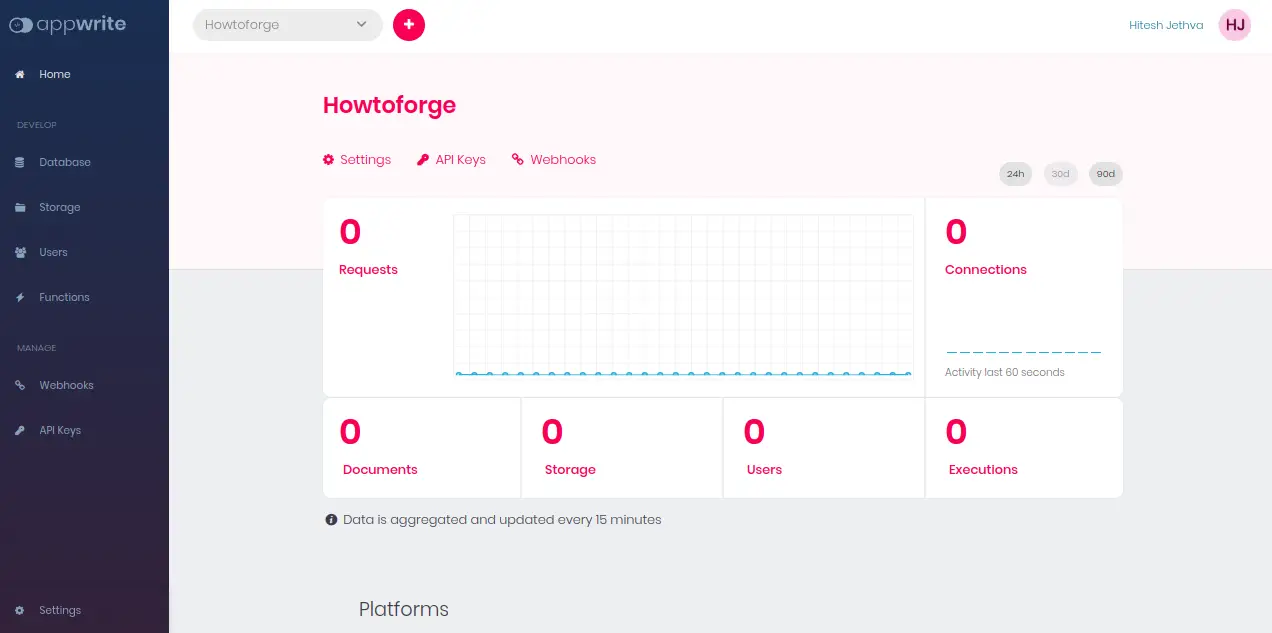
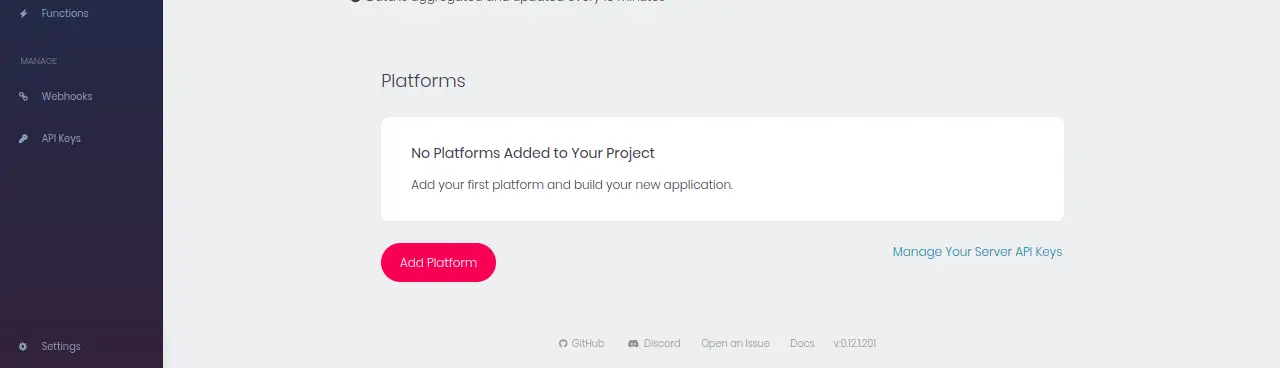
Now, you will need to add a platform to build your application. Click on the Add Platform button. You should see the following page:
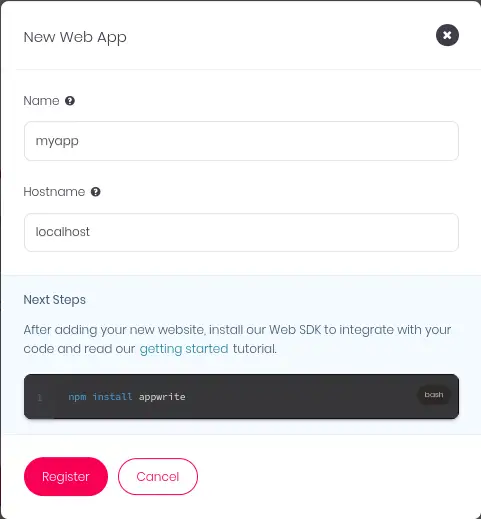
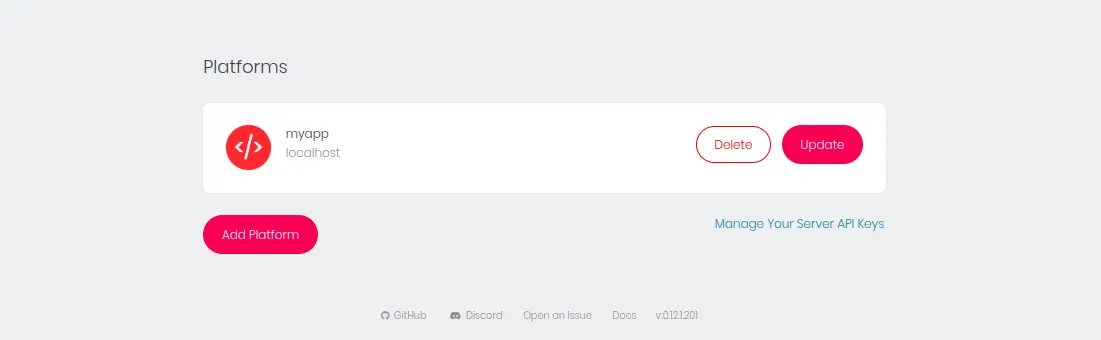
Provide your appname, hostname and click on the Register button. You should see the following page:
Conclusion
Congratulations! you have successfully installed Appwrite with Docker on Ubuntu 22.04. You can now deploy your first web or mobile application on the Appwrite platform. Feel free to ask me if you have any questions.

Add Comment