









Giới thiệu
OpenVPN Access Server là một công cụ cung cấp quyền truy cập an toàn vào các mạng riêng. Với khả năng hỗ trợ tất cả các hệ điều hành phổ biến và nhiều phương thức xác thực, đây là giải pháp VPN phù hợp cho nhiều doanh nghiệp vừa và nhỏ (SMB).
Nếu bạn không sử dụng nhiều hơn hai kết nối đồng thời, Access Server hoàn toàn miễn phí.
Hãy làm theo hướng dẫn này để tìm hiểu cách thiết lập OpenVPN Access Server và cấu hình cài đặt mạng.
Điều kiện tiên quyết
Lưu ý những thông tin sau:
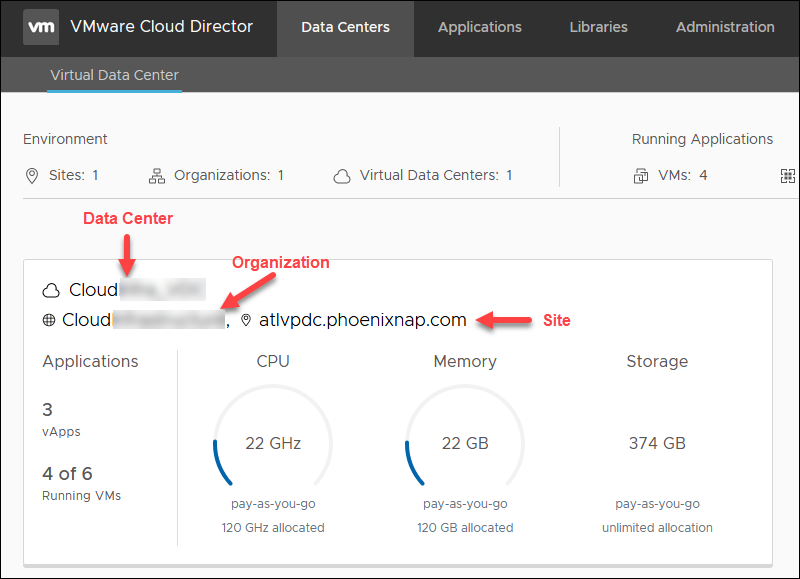
- Tên trung tâm dữ liệu – ví dụ: CloudTest_DC
- Tên tổ chức – ví dụ: CloudOrgTest
- Vị trí đặt máy chủ – ví dụ: atlvpdc.congdonglinux.com
Thông tin chi tiết có sẵn trên trang đích của VMware Cloud Director.
Tổng quan về Organization
Trên trang đích của Cloud Director, hãy chọn một trung tâm dữ liệu. Dưới đây là tổng quan về thông tin bạn cần để thiết lập OpenVPN Access Server.
Lưu ý: Tất cả IP trong hướng dẫn này chỉ được sử dụng làm ví dụ. Vui lòng sử dụng IP công cộng của riêng bạn trong phạm vi mạng bên ngoài. Bạn có thể chọn bất kỳ IP riêng nào để cấu hình.
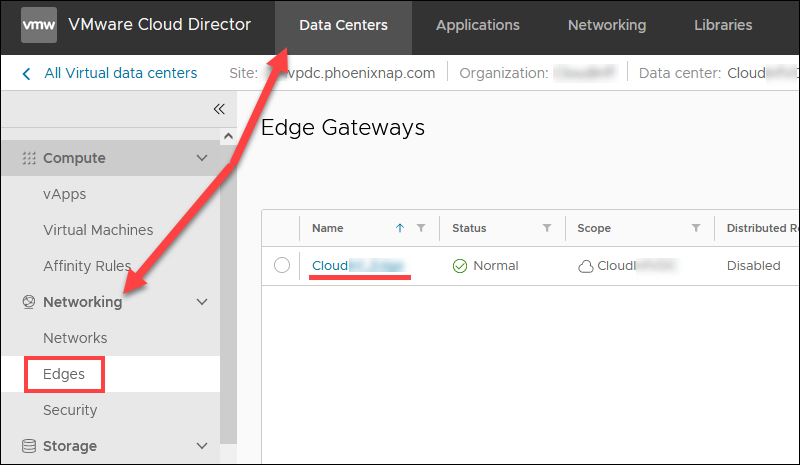
External network name Trong tab Data Centers, chọn Networking -> Edges và nhấp vào Edge
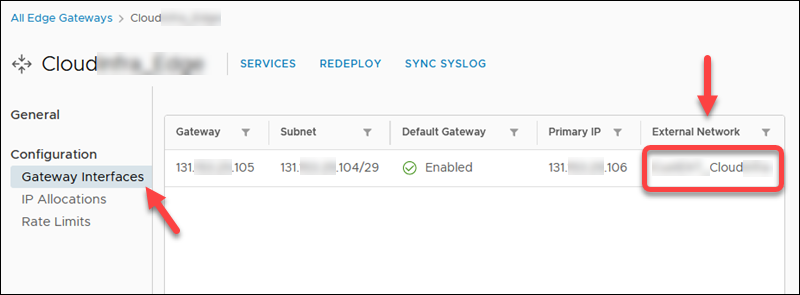
Chọn Gateway Interfaces để xem tên mạng bên ngoài. Tên này bao gồm tên tổ chức của bạn.
- First available public IP address. Trong tab Data Centers, chọn Networking -> Edges. Nhấp vào tên Edge rồi chọn IP Allocations để xem dải public IP được chỉ định.
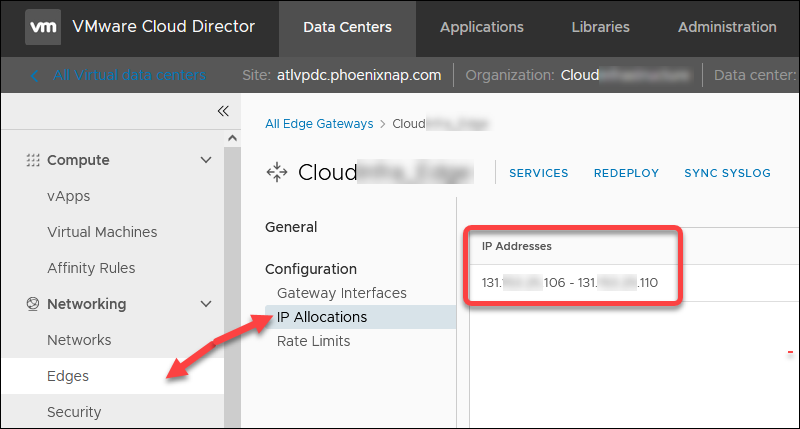
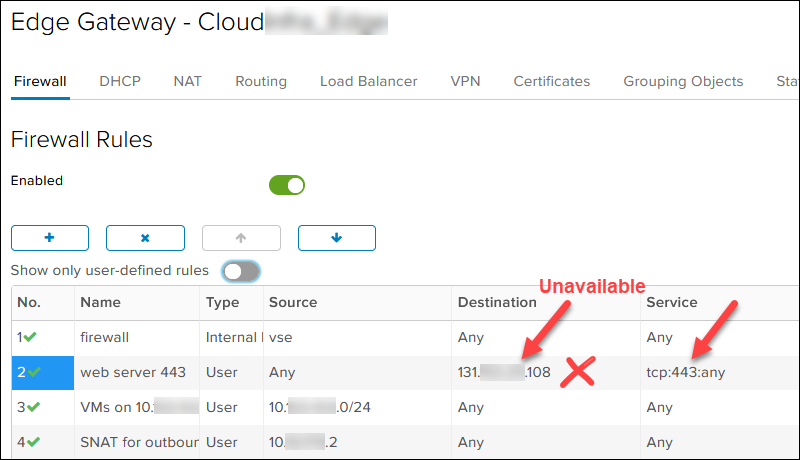
Sau đó, nhấp vào SERVICES và tham khảo các quy tắc NAT và Firewall để xác định địa chỉ IP công cộng nào trong phạm vi trên cổng TCP 443 không khả dụng. Trong trường hợp của chúng tôi, địa chỉ 131.xxx.xxx.108 đã được sử dụng, do đó địa chỉ IP công cộng khả dụng đầu tiên là 131.xxx.xxx.106.
- Document new DMZ network subnet cho máy chủ OpenVPN mới. Chọn bất kỳ IP riêng nào. Chúng tôi đã chọn /29 trong trường hợp cần thêm một node OpenVPN thứ hai. Ví dụ:
- Mạng DMZ: 10.xxx.xxx.1/29
- Cổng DMZ: 10.xxx.xxx.1
- Một IP Máy chủ Truy cập OpenVPN: 10.xxx.xxx.2
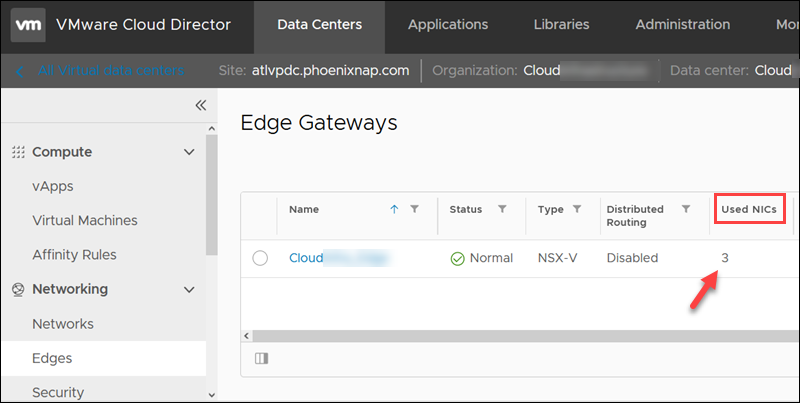
- The number of used NICs cho biên. Nếu bạn có 10 NIC, mạng DMZ mới sẽ được tạo ở chế độ Cô lập ngay cả khi đã chọn Định tuyến. Số lượng NIC được sử dụng nằm trong danh sách các biên của bạn.
- VM guest network, for example, 10.xxx.xxx.0/24.
Tạo tài khoản OpenVPN Access Server
Để tạo tài khoản OpenVPN Access Server miễn phí:
- Truy cập trang OpenVPN Access Server.
- Nhấp vào nút Get Your Free Connections

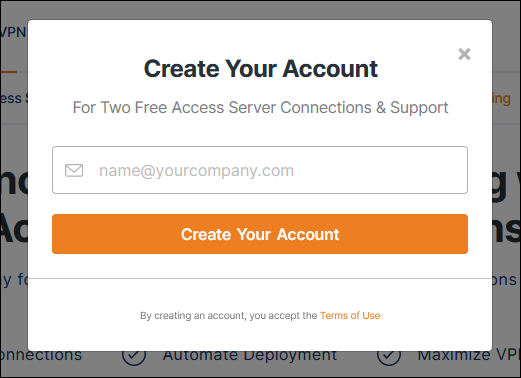
3. Nhập Email và nhấp vào Create Your Account.
- Nhấp vào liên kết Confirm your email khi bạn nhận được Email từ OpenVPN.
- Nhập password khi trang tải xong.
- Chọn Business Use (requires more information) or Personal Use và nhấp vào Tiếp tục.
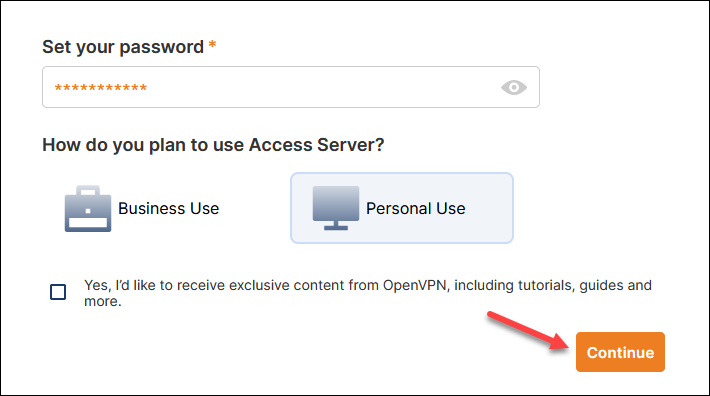
Access Server Portal sẽ bắt đầu load
- Nhấp vào Create để tạo khóa kích hoạt.

Trang chi tiết đăng ký và khóa sẽ tải xuống.
- Nhấp vào nút Copy Key và lưu khóa đăng ký vì bạn sẽ cần nó sau này để cấu hình OpenVPN Access Server.
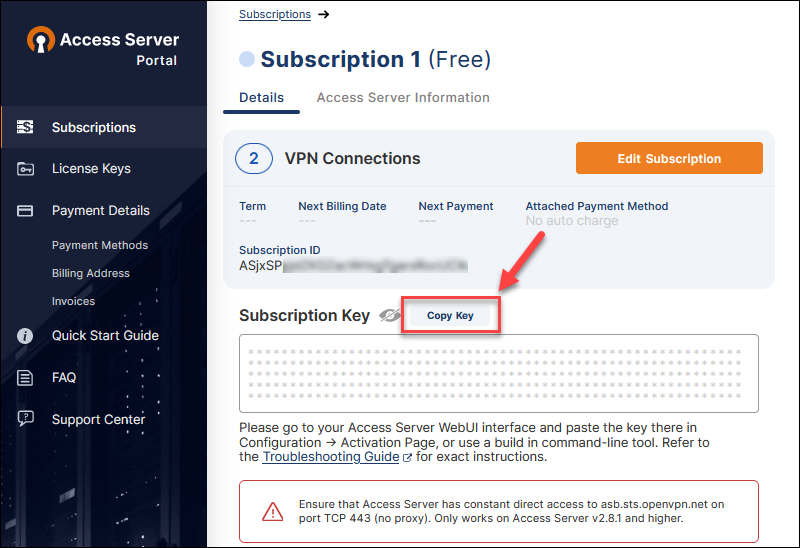
Tạo mạng DMZ cho máy chủ truy cập OpenVPN mới
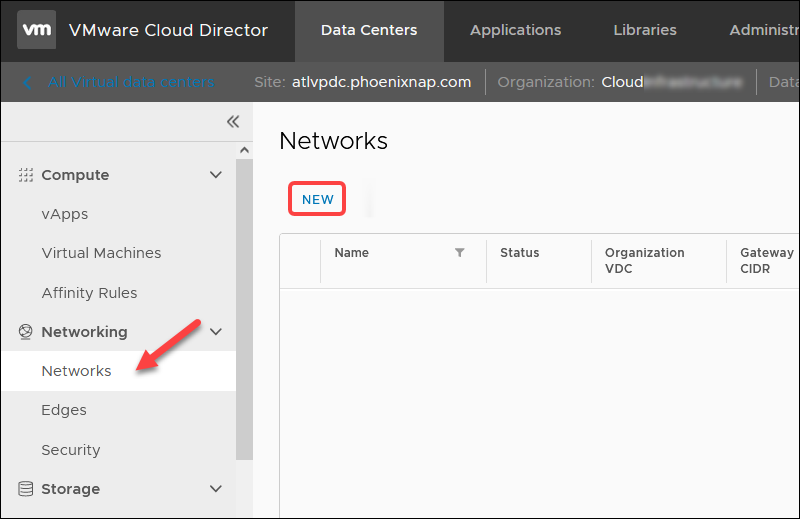
Để tạo mạng DMZ mới cho máy chủ truy cập OpenVPN mới trong VMware Cloud Director cho tổ chức của bạn, hãy điều hướng đến Data Centers -> Networking – > Networks.
Nhấp vào NEW để bắt đầu trình hướng dẫn.
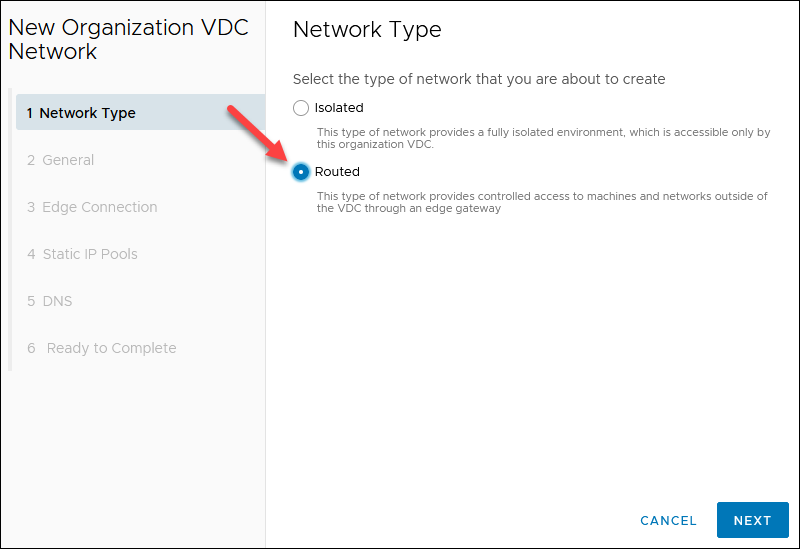
- Chọn Routed cho bước loại mạng và nhấp vào TIẾP THEO.
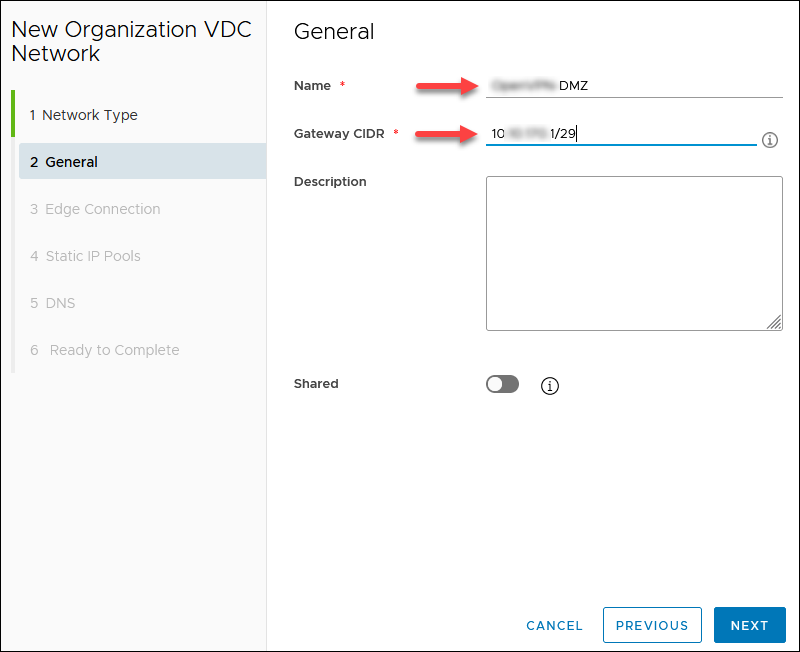
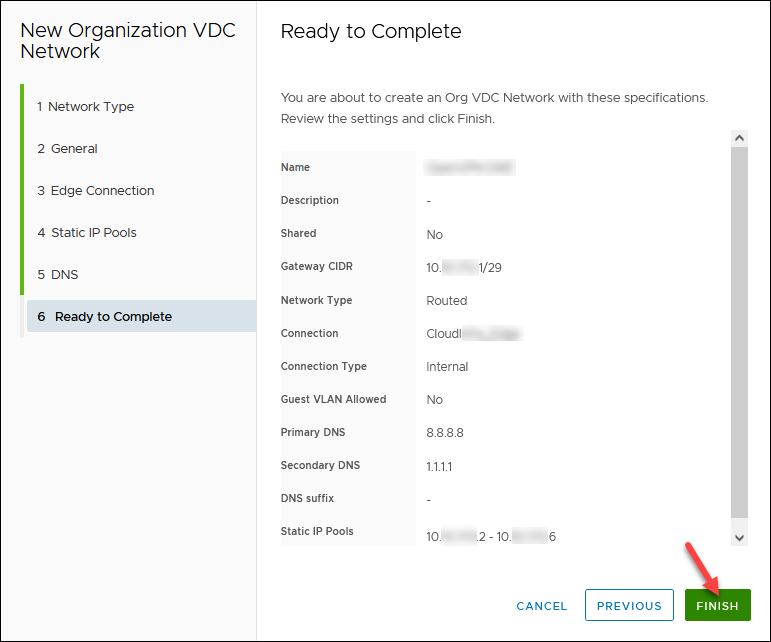
2. Nhập network Name and the Gateway CIDR bạn đã chọn trước đó, ví dụ: 10.xxx.xxx.1/29. Các trường khác là tùy chọn. Nhấp vào TIẾP THEO.
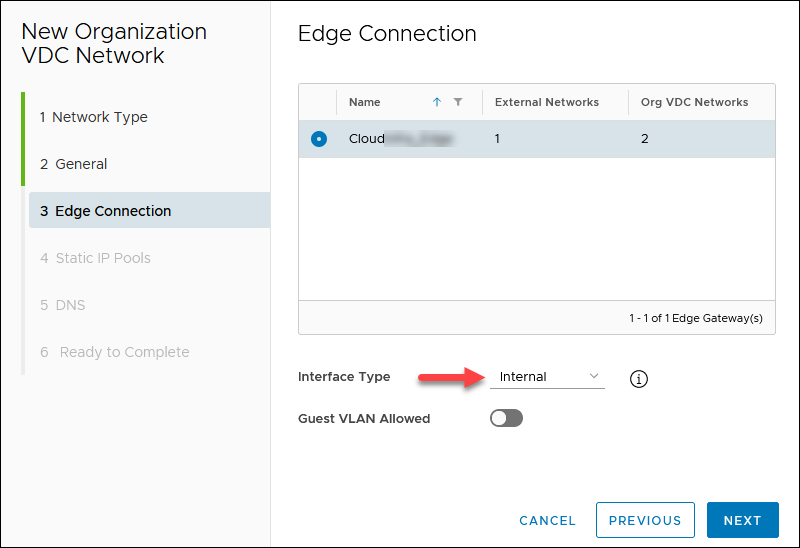
3. Chọn Interface Type Internal cho cạnh đã chọn với IP Công cộng và nhấp vào TIẾP THEO. Ví dụ, cổng kết nối là 10.xxx.xxx.1.
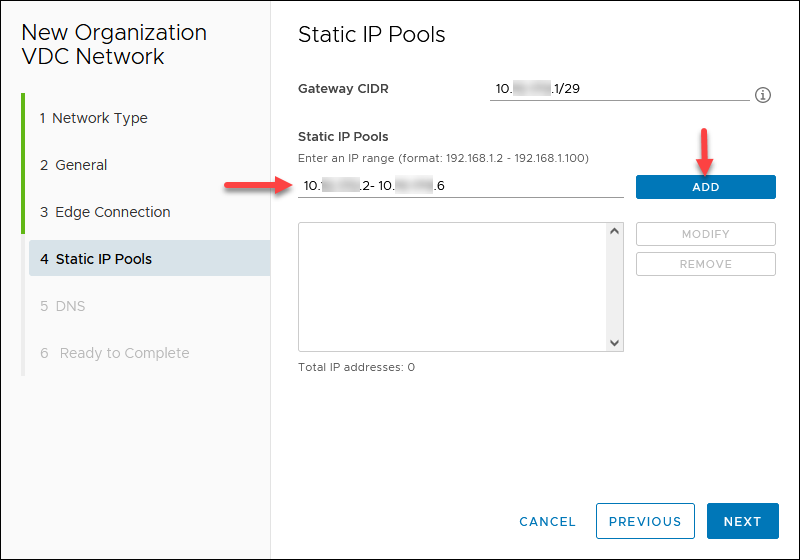
4. Add static IP pools được xác định bởi CIDR cổng mà bạn đã chỉ định trước đó. Ví dụ: 10.xxx.xxx.2 – 10.xxx.xxx.6. Nhấp vào TIẾP THEO.
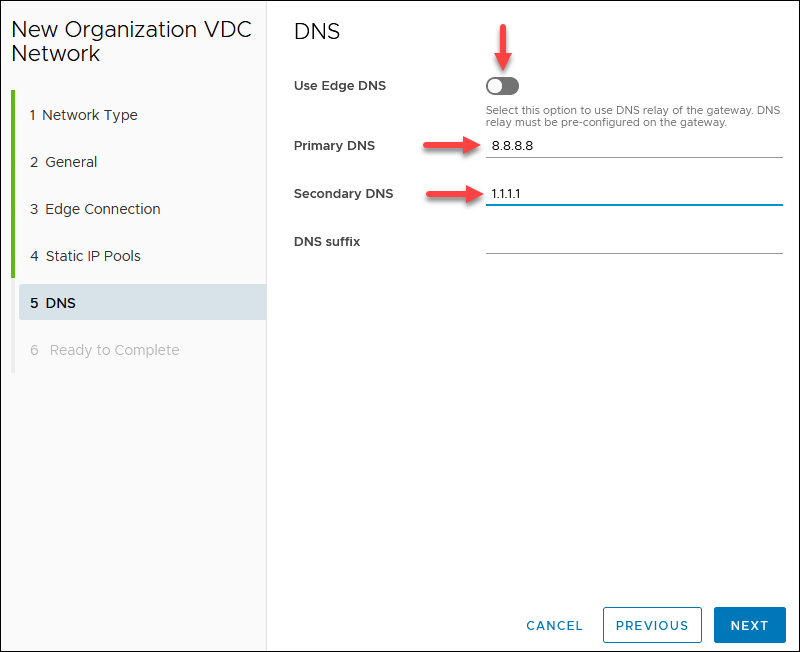
5. If your edge has a DNS, you can enable Use Edge DNS. Otherwise, specify a public DNS provider, for example, 8.8.8.8 (primary DNS) and 1.1.1.1 (secondary DNS). Click NEXT.
6. Review the network configuration and click FINISH when ready.
Create SNAT/DNAT Edge Rules
To create new rules, in the Data Centers tab:
1. Navigate to Networking -> Edges.
2. Select an Edge Gateway and click Services. Wait for the pop-up window to load to apply all new rules on the external network name recorded.
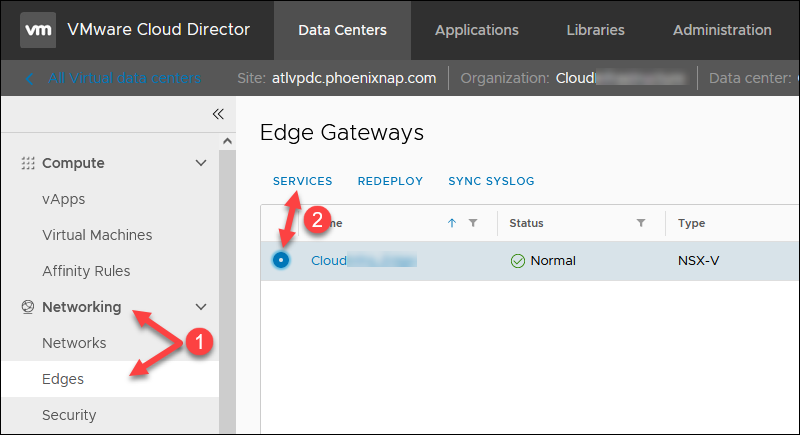
3. Click the NAT tab to start adding new rules. You can save the changes after every rule or when you add all of them.
Create SNAT Rule
To create a SNAT rule for outbound internet access in the NAT section:
1. Click the + SNAT RULE button.
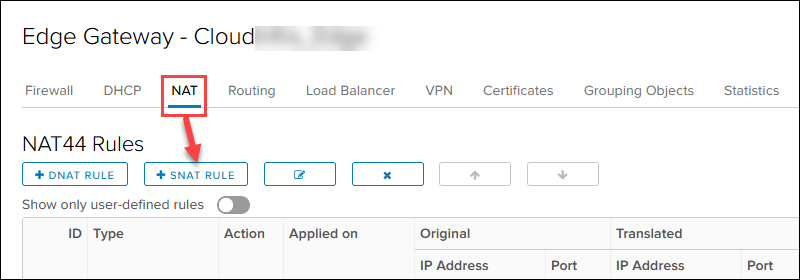
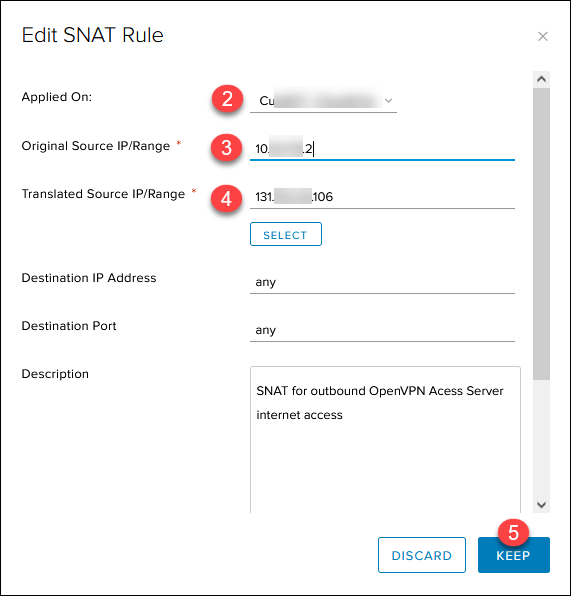
2. Select the external public network.
3. Add the OpenVPN Access Server IP 10.xxx.xxx.2 in the Original Source IP/Range for any port and protocol.
4. Add the previously noted first available public IP 131.xxx.xxx.106 in the Translated Source IP/Range for any port and protocol.
5. Add a relevant description and click KEEP.
The Save changes message appears on the main page. Save the progress now or when you add all rules.
Create DNAT Rules
Create the DNAT inbound rules in the NAT section:
1. Click the + DNAT RULE button.
2. Select the external public network.
3. Add the public IP 131.xxx.xxx.106 in the Original Source IP/Range.
4. Select UDP in the Protocol drop-down list.
5. Choose Any in the Original Port drop-down list.
6. Add the OpenVPN Access Server IP 10.xxx.xxx.2 in the Translated Source IP/Range field for any source port and IP.
7. Enter 1194 in the Translated Port.
8. Add a relevant description and click KEEP.
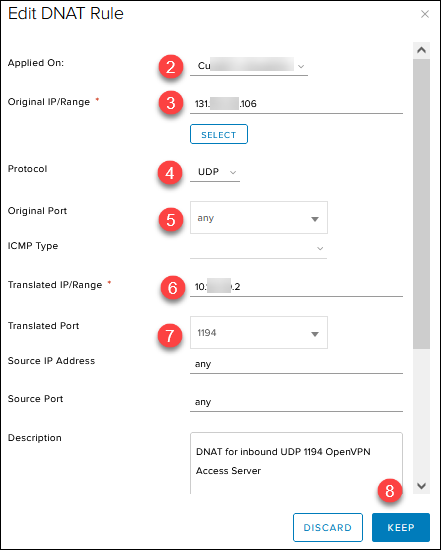
Repeat the same steps for the second and third DNAT inbound rule, with these changes:
- Set Protocol to TCP, Translated Port to 443, and add a relevant description.
- Set Protocol to TCP, Translated Port to 943, and add a relevant description. (This one is a temporary rule for initial administration).
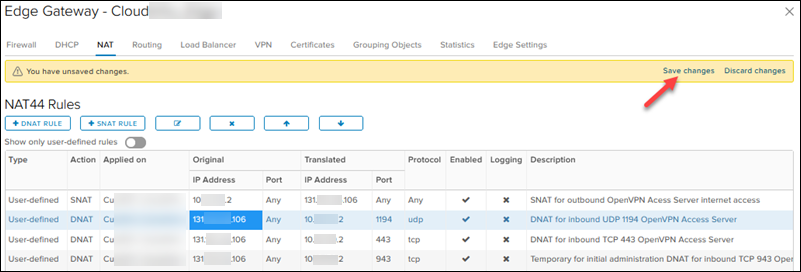
Remember to click Save changes when you finish adding all the rules or after every rule.
The rule list should look like this:
Create Firewall Edge Rules
The firewall rules in this section must be higher than deny rules.
To create a firewall rule in the Data Centers tab:
1. Navigate to Networking -> Edges.
2. Select an Edge Gateway and click Services. Wait for the pop-up window to load.
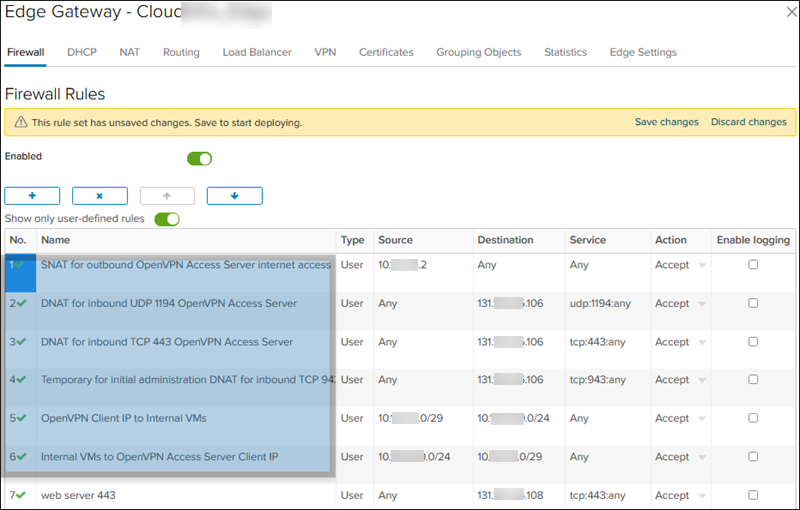
3. Click the Firewall tab and the + button to start adding new rules. You need six different rules listed in step 6 below. Save the changes after every rule or when you add all of them.
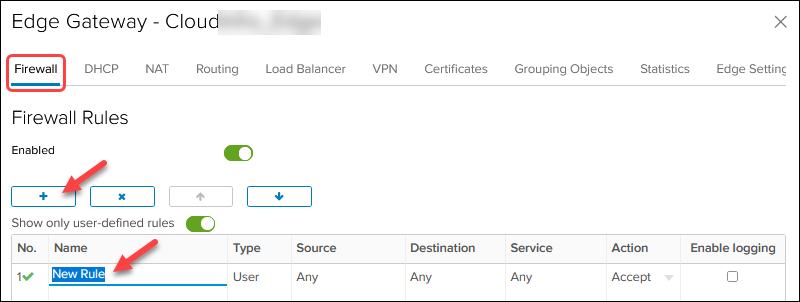
Edit the values in the columns for every firewall rule. Hover over a cell to see the available actions. For the names of firewall rules, use the description from the NAT rules.
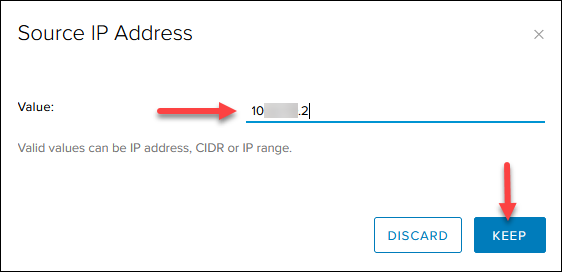
4. For Source and Destination, click the IP button to add an IP.
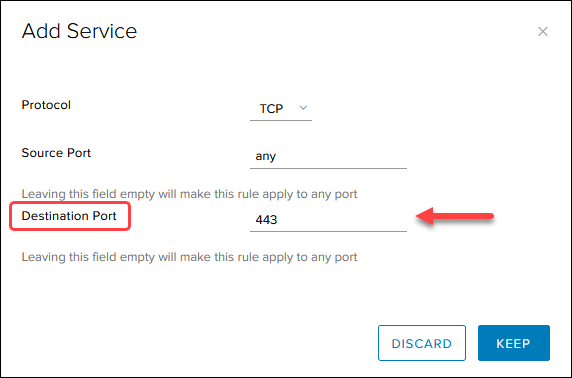
5. For Service, click the + button and add the protocol and the destination port as listed in the image in step 6. Leave the source port to any.
Note: The order of the source and destination port in the Add Service box does not correlate to how the firewall rule table displays them.
6. When you finish, the firewall rules table looks like this:
Create vApp with VM
To create a vApp with a new VM in the Data Centers tab:
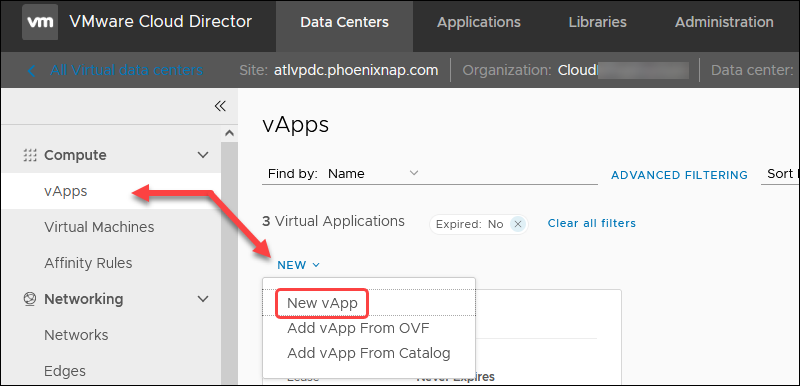
1. Navigate to Compute -> vApps -> NEW and select New vApp.
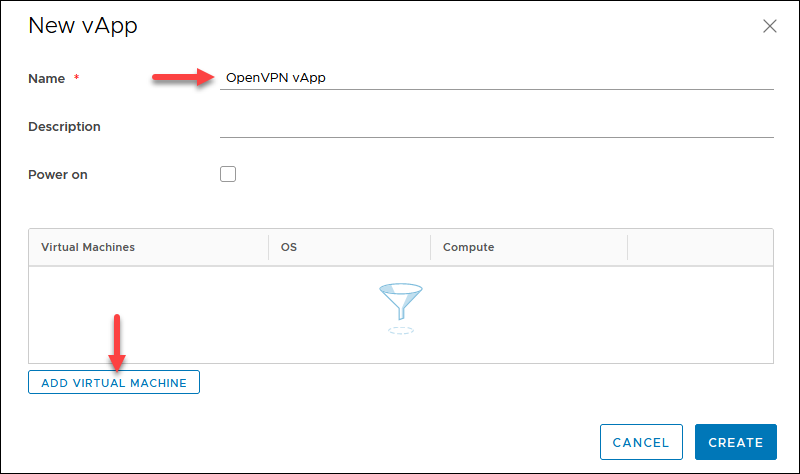
2. Enter a name for the vApp and click the ADD VIRTUAL MACHINE button
3. Enter a VM name without spaces.
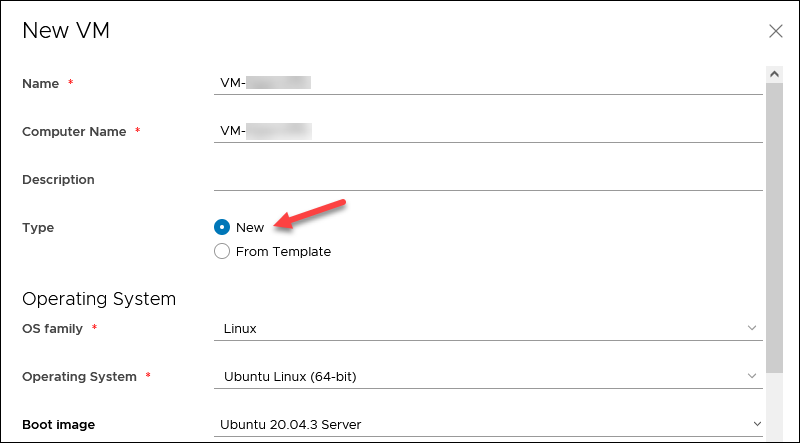
4. Select Type -> New and specify the OS details:
- OS family: Linux
- Operating System: Ubuntu Linux (64-bit)
- Boot image: Ubuntu 20.04.3 Server.
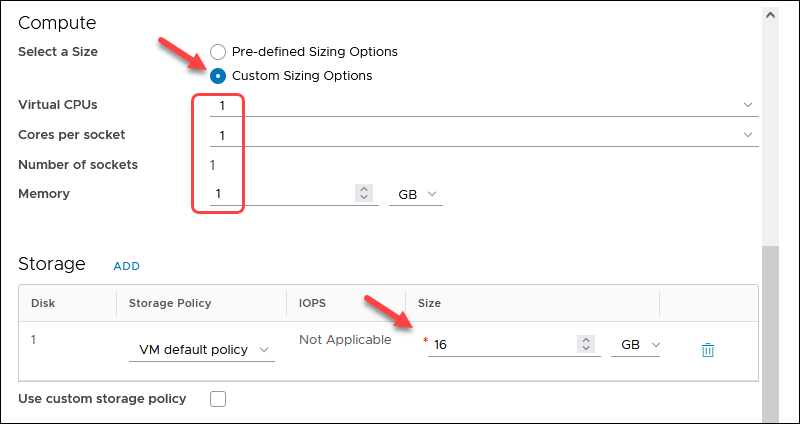
5. In the Compute section, select Custom Sizing Options and set all four values to 1.
6. Enter 16GB for the disk size in the Storage section.
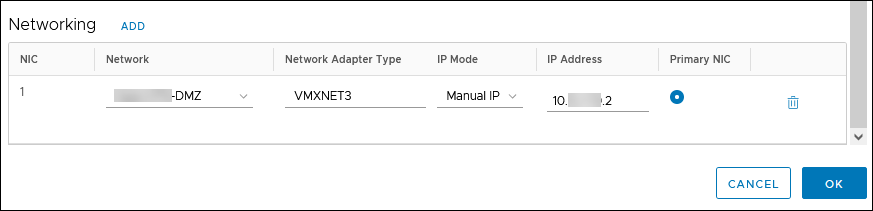
5. In the Network section, choose:
- The previously created routed network.
- Network Adapter Type: VMXNET3
- IP Mode: Manual IP
- IP Address: OpenVPN Access Server IP 10.xxx.xxx.2
6. Click OK and then CREATE. The progress is shown on the vApps screen.
Configure VM
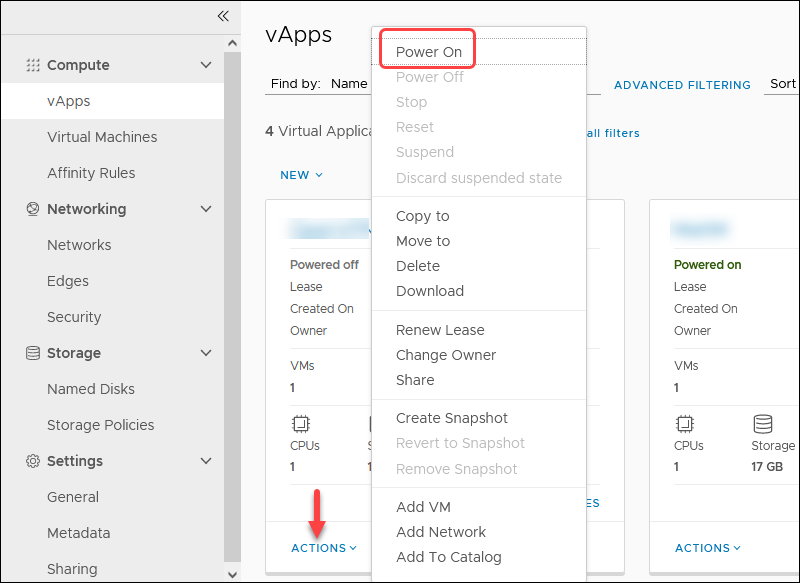
To complete the VM setup, power on the vApp to start the OpenVPN Access Server VM:
1. In the vApps screen, click the ACTIONS link and choose Power On.
2. Click VM Consoles and then VM Console to get access to the VM.
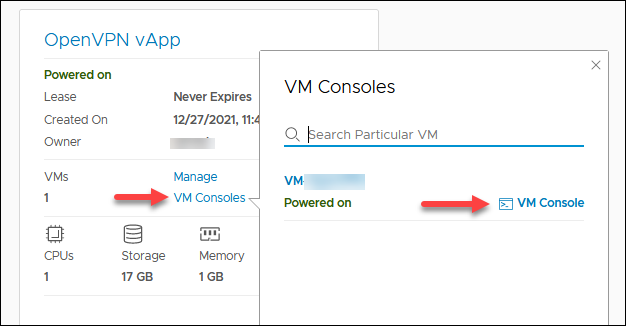
Wait for the VM to boot up.
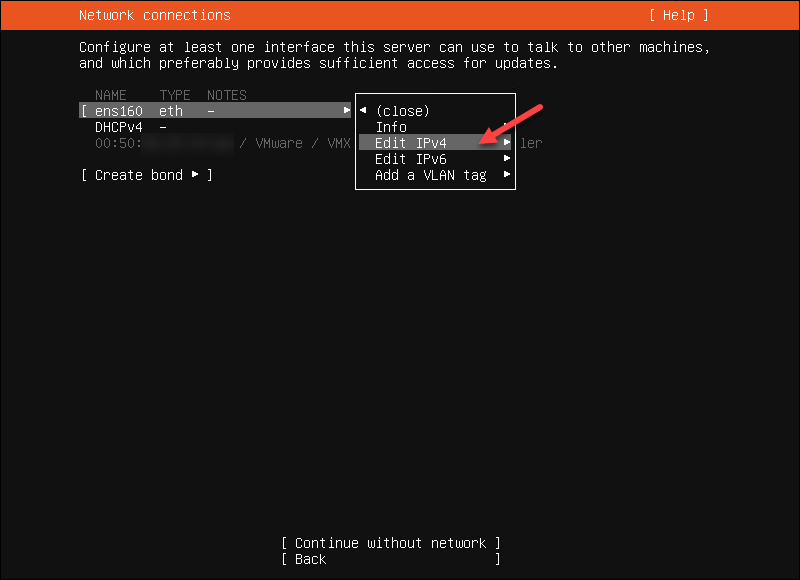
3. Highlight ens160 and choose Edit IPv4.
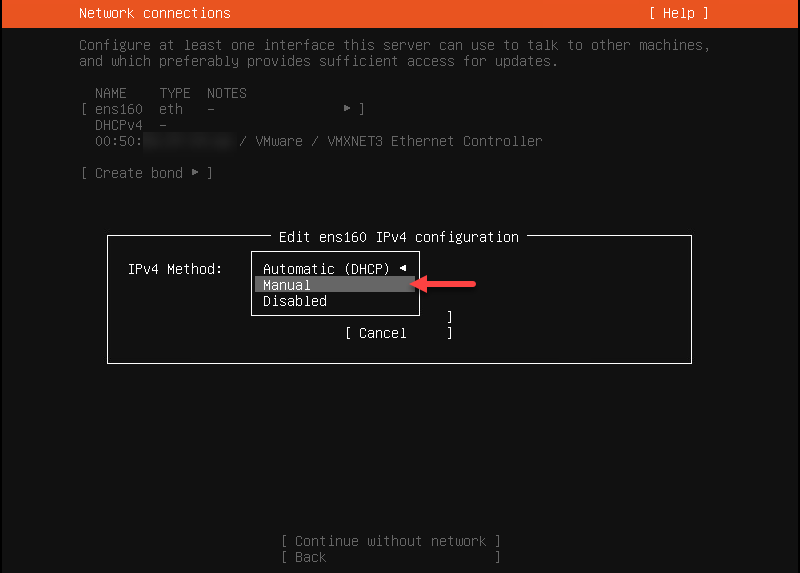
4. Choose Manual for the IPv4 Method. Confirm by selecting Done.
5. Enter the network settings you used previously and select Save.
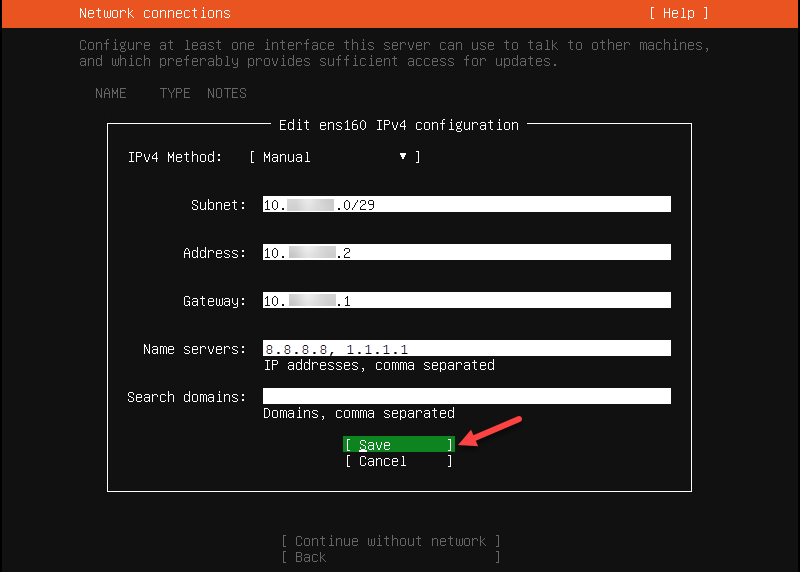
6. Select Done for the rest of the options and Continue to the storage configuration screen.
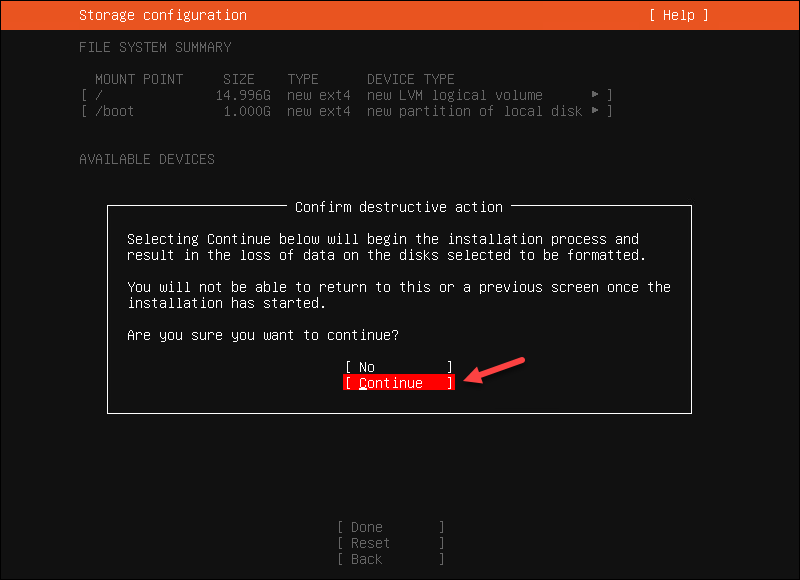
7. Complete the profile setup and save the account information securely. The username is stored in the sudoers file. Do not use “openvpn” as a username so that the OS and the OpenVPN Access Server application account can be separate.
Note: The server’s name will be reflected in the Web OpenVPN Access Server Subscription Portal.
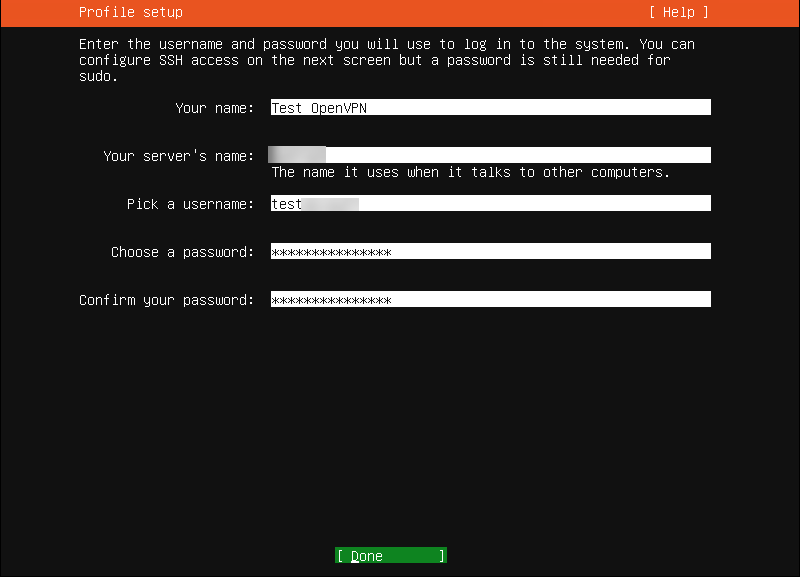
8. Skip the SSH Server installation. Select Done to continue.
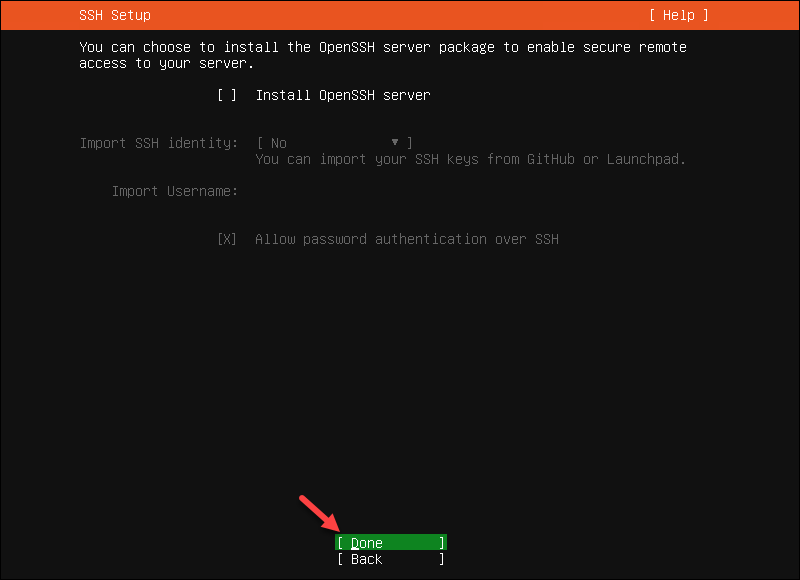
9. Wait for the process to finish and select Reboot Now.
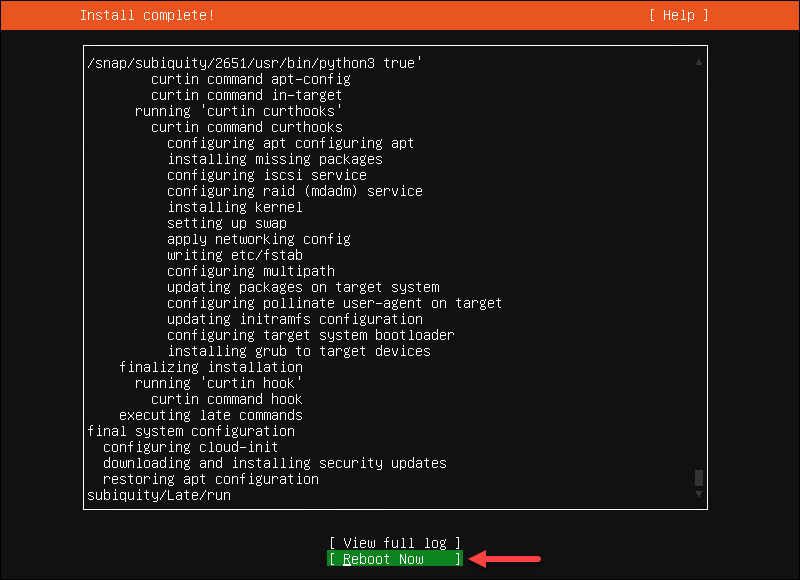
When done, the console shows the Failed unmounting /cdrom message.
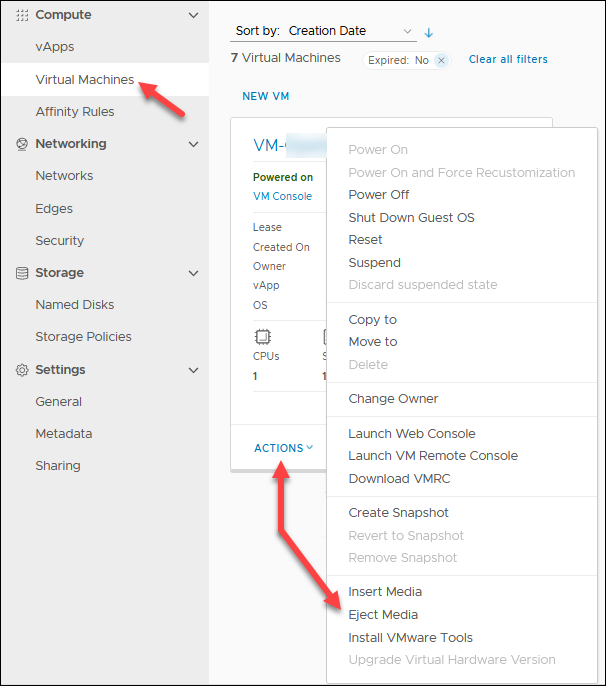
10. In the Cloud Director, locate the OpenVPN Access Server VM in the Compute -> Virtual Machines screen. Click ACTIONS and select Eject Media to remove the Ubuntu ISO from the VM.
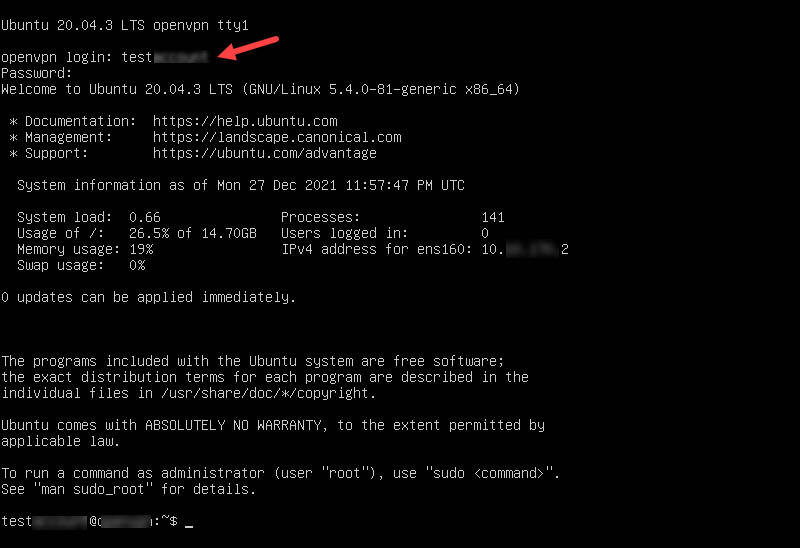
11. Return to the VM console and hit Enter to reboot the machine. The VM boots to the login screen.
12. Enter the username and password used during the profile creation.
Verify VM Network and Install Updates
Ping the edge gateway and a DNS server via the VM console to verify the connection.
ping 10.xxx.xxx.1
ping 1.1.1.1
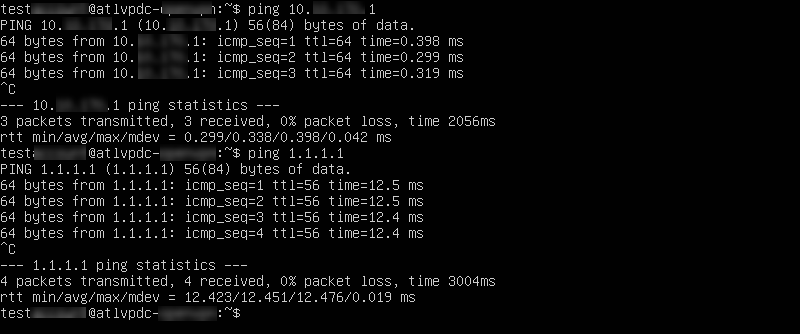
When you confirm the connection is working, update the system:
sudo su -
apt update -y && apt upgrade -y
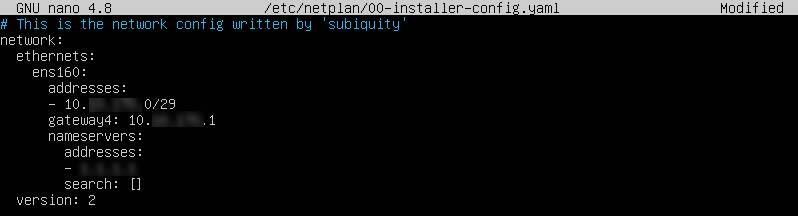
To make changes in the network configuration, edit the netplan config file using a text editor:
nano /etc/netplan/00-installer-config.yaml
Install OpenVPN Access Server
To install the OpenVPN Access Server:
1. Go to the OpenVPN Access Server packages page and click the Ubuntu icon.
2. Copy and paste the commands one by one in the VM console while logged in as root. If there are any errors, check for typing mistakes. The second command has capital O, not a zero.
apt update && apt -y install ca-certificates wget net-tools gnupg
wget -qO - https://as-repository.openvpn.net/as-repo-public.gpg | apt-key add -
echo "deb http://as-repository.openvpn.net/as/debian focal main">/etc/apt/sources.list.d/openvpn-as-repo.list
apt update && apt -y install openvpn-as
When the update finishes, you see the confirmation message.
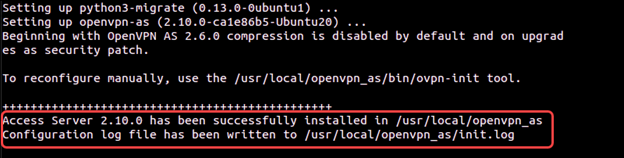
3. Save the OpenVPN Access Server password so you can use it later. The password can be changed via the OpenVPN Access Server UI.

Configure OpenVPN Access Server
To configure OpenVPN Access Server:
1. Go to the OpenVPN Access Server admin page using the public IP, for example:
https://131.xxx.xxx.106:943/admin
2. Use the credentials you noted after the OpenVPN Access Server installation.
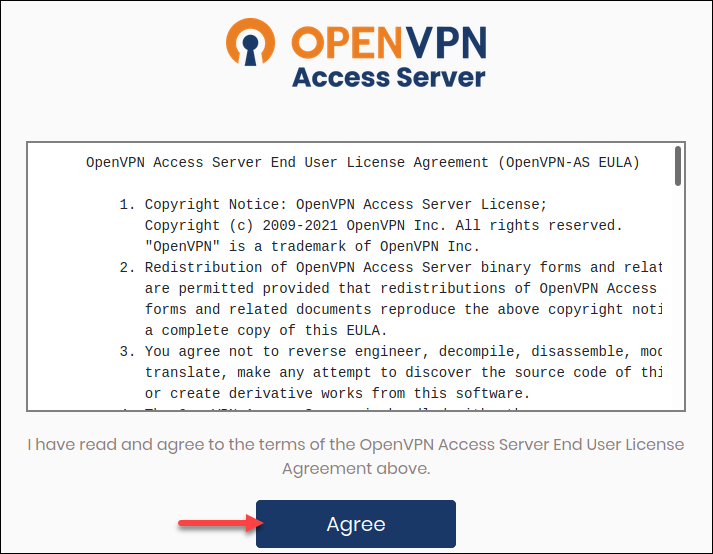
3. Click Agree if you agree to the terms and conditions.
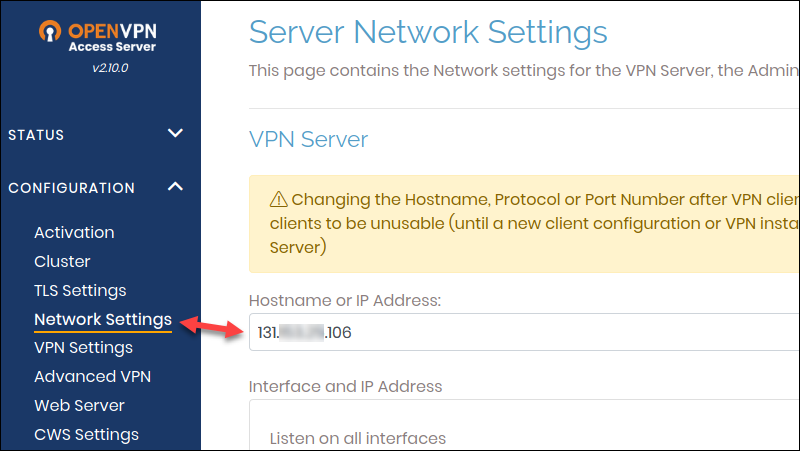
4. In Configuration -> Network Settings, change the hostname from the private IP address to the public IP.
5. Scroll down and click Save Settings and Update Running Server.

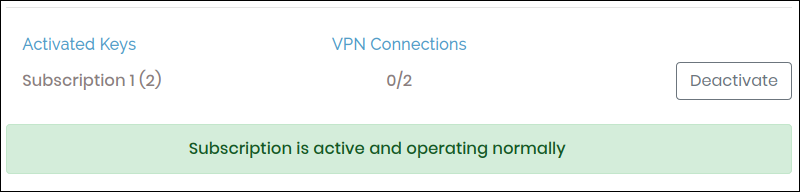
6. Navigate to Activation, enter the subscription key from the OpenVPN Access Server portal, and click Activate.
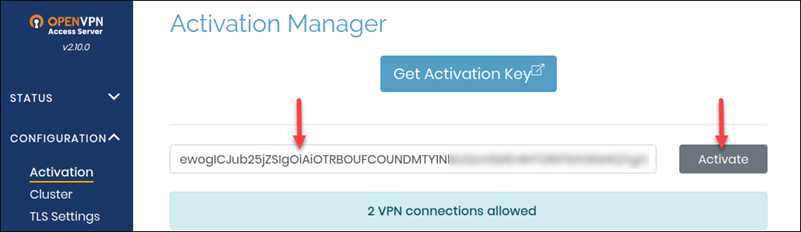
If successful, you receive the message “Subscription is active and operating normally.”
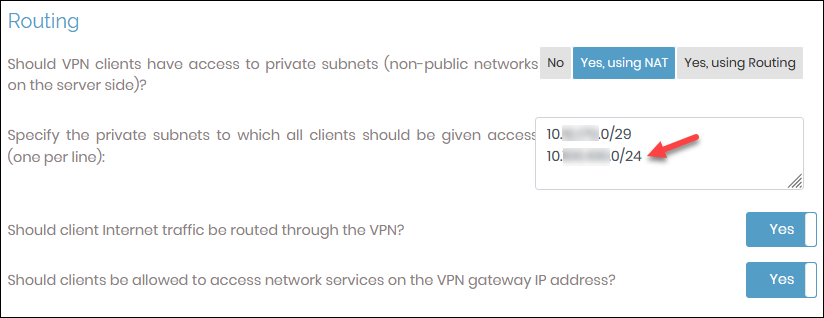
7. Navigate to Configuration – > VPN Settings, scroll to the Routing section and add the guest VM subnet you used previously.
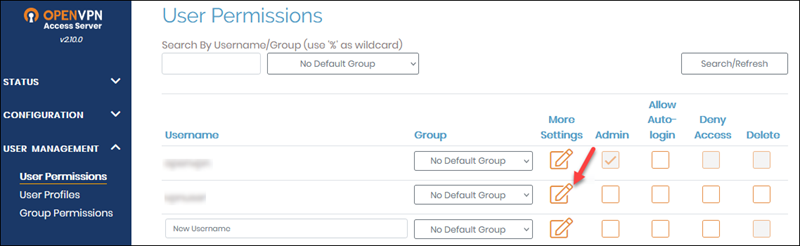
8. Go to User Management -> User Permissions and create a new user account for the client VPN access. Click the More Settings icon to add a password.
9. Click Save Settings and Update Running Server
On the client side, there are a few more steps:
1. Log in to https://your_public_ip/ with the user you just created.
2. Install the recommended client for the OS you are using. Depending on the OS you choose, you either get a file to download or are redirected to the page to follow the installation instructions.
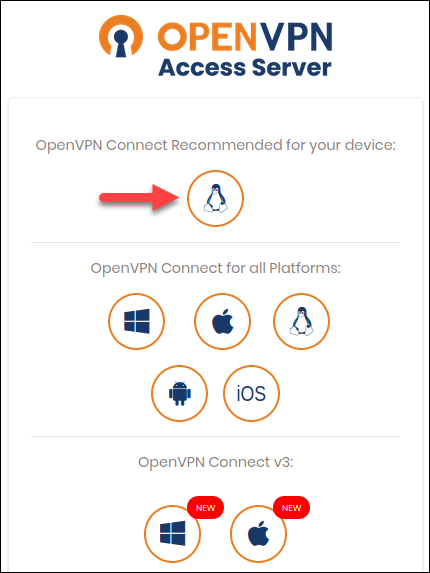
In Windows, if you get a Defender alert, accept to continue the installation. The profile is included with the installation.
If you already have the OpenVPN Access Server application installed and you are adding another connection, download the profile and import it.

3. Finally, launch the OpenVPN Access Server client and establish a connection.
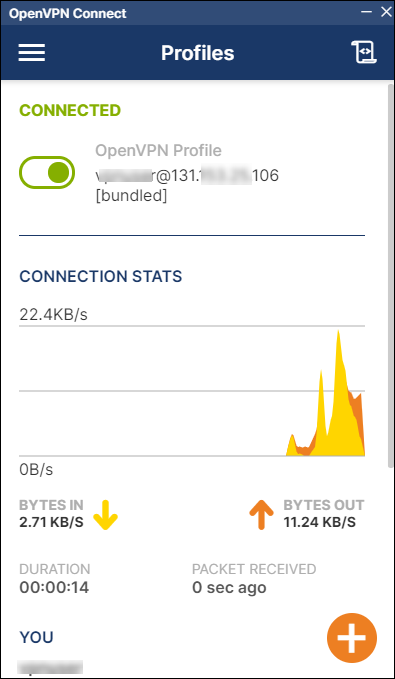
To test if the connection is working, RDP or SSH into your VM using the private IP.
Final Steps
Some firewall and DNAT rules are not necessary anymore. Log in to the Cloud Director and remove:
- TCP 943 firewall rule.
- TCP 943 DNAT rule.
To do so:
- Navigate to Networking -> Edges.
- Select an Edge Gateway and click Services.
- In the Firewall section, highlight the port 943 rule and click the X button to delete it.
- In the NAT tab, delete the DNAT TCP 943 rule. Highlight the row and click the X button.
Note: Once you remove the 943 firewall and NAT rules, the OpenVPN Access Server admin page will be accessible via https://your_public_ip/admin
Troubleshooting
If you can connect to your VMs with the SSL VPN Plus client and cannot when connected with the OpenVPN Connect application, please review the firewall rules you created and subnet added to the OpenVPN Admin page.
Additionally, try changing the following settings in the OpenVPN Access Server Admin page:
1. Go to the https://your_public_ip/admin page.
2. Navigate to Configuration -> VPN Settings.
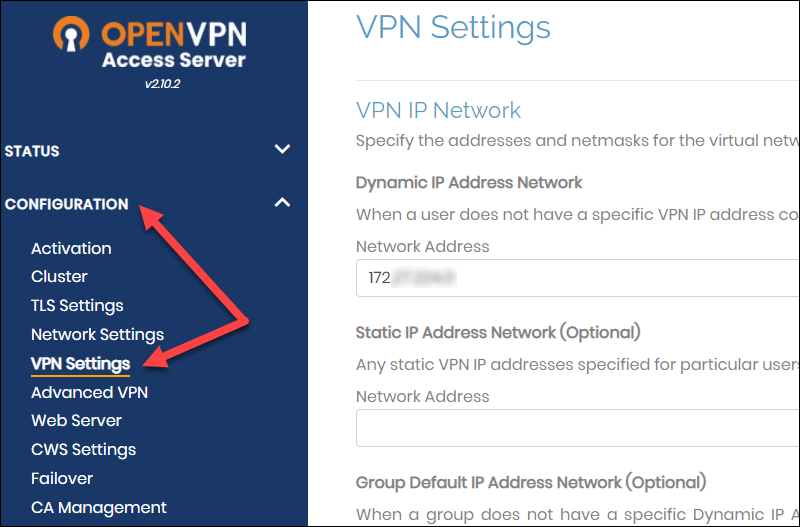
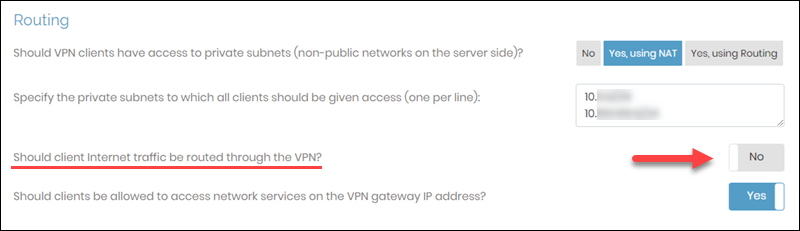
3. In the Routing section, change “Should client Internet traffic be routed through the VPN?” to No.
Useful Links
For additional information on OpenVPN Access Server, consult the Open VPN documentation:
If you need to do subnet calculations, use the subnet calculator.
Note: Learn also how to install OpenVPN on Docker.
Conclusion
By following the instructions in this guide, you should have a working OpenVPN Access Server installation with proper configuration.
The setup process is straightforward and simple if you complete all the steps in the tutorial.
Add Comment