






After installed Ubuntu 19.10 Eoan Ermine, one of the top things to do is enable the ‘minimize on click‘ (or you may call ‘click to minimize‘) feature.
With the feature enabled, you can simply click the application icon on the left dock launcher (left panel) to minimize the opened app window.

To enable ‘Click to Minimize’ via single command:
For those familiar with Linux commands, simply open terminal either from applcation menu or by pressing Ctrl+Alt+T on keyboard.
When terminal opens, run command:
gsettings set org.gnome.shell.extensions.dash-to-dock click-action minimize

To restore the changes, simply run command:
gsettings reset org.gnome.shell.extensions.dash-to-dock click-action
To enable ‘Click to Minimize’ via a graphical tool:
You can also do this via a graphical tool called dconf editor.
1. First open Ubuntu Software, search for and install dconf editor.
2. Launch dconf editor and navigate to “org / gnome / shell / extensions / dash-to-dock”, then find out the key “click-action”.
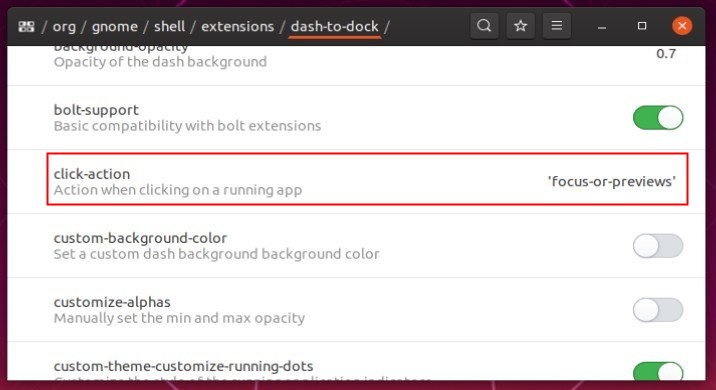
3. Click on the key to go to its configuration page, then do:
- turn off “Use default value”.
- set “current value” to ‘minimize’ or ‘minimize or previews’ or ‘minimize or overview’

Add Comment